

Install
Put billed on
your home screen.
On Android, get billed from Google Play. On iPhone, iPad, Windows and Mac it installs straight from your browser in about twenty seconds, and afterwards it opens from an icon like any other app.

Pick your device to jump straight to the steps.
Step by step
Pick your device.
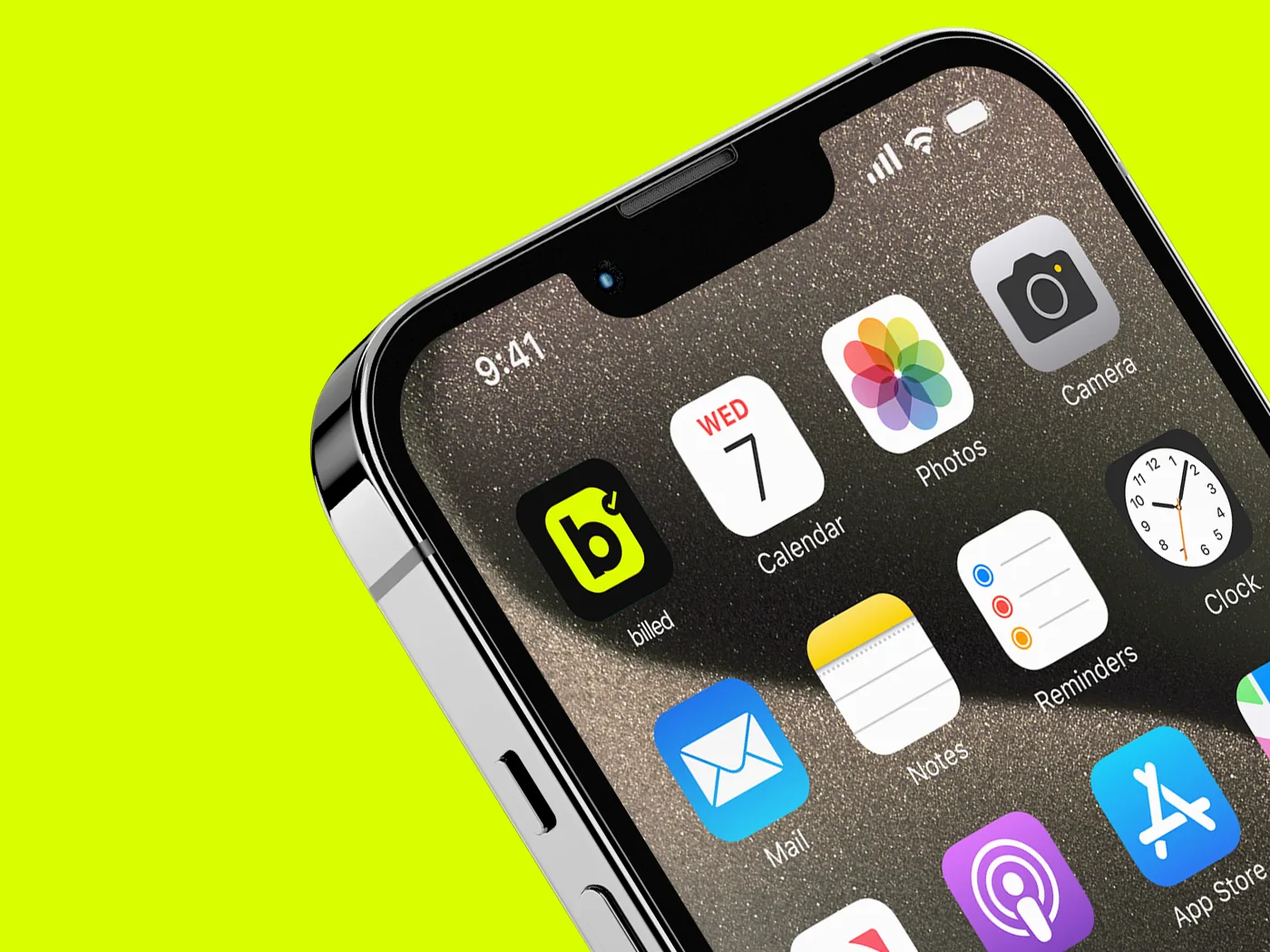
iPhone & iPad
Safari, Chrome or Edge · about 20 seconds
- Open app.billed.au in Safari.
- Tap the Share button — the square with an arrow pointing up.
- Scroll down the list and tap Add to Home Screen. It sits below the row of share targets, so it's easy to scroll past.
- Check the name, then tap Add. billed appears on your home screen.
If you don't see "Add to Home Screen": you're probably in an in-app browser — the one that opens inside Instagram, Messenger or a chat app. Tap the menu and choose Open in Safari first. Chrome and Edge on iPhone work too, from the Share button in the address bar.
Android
Chrome, Edge, Brave or Samsung Internet · about 15 seconds
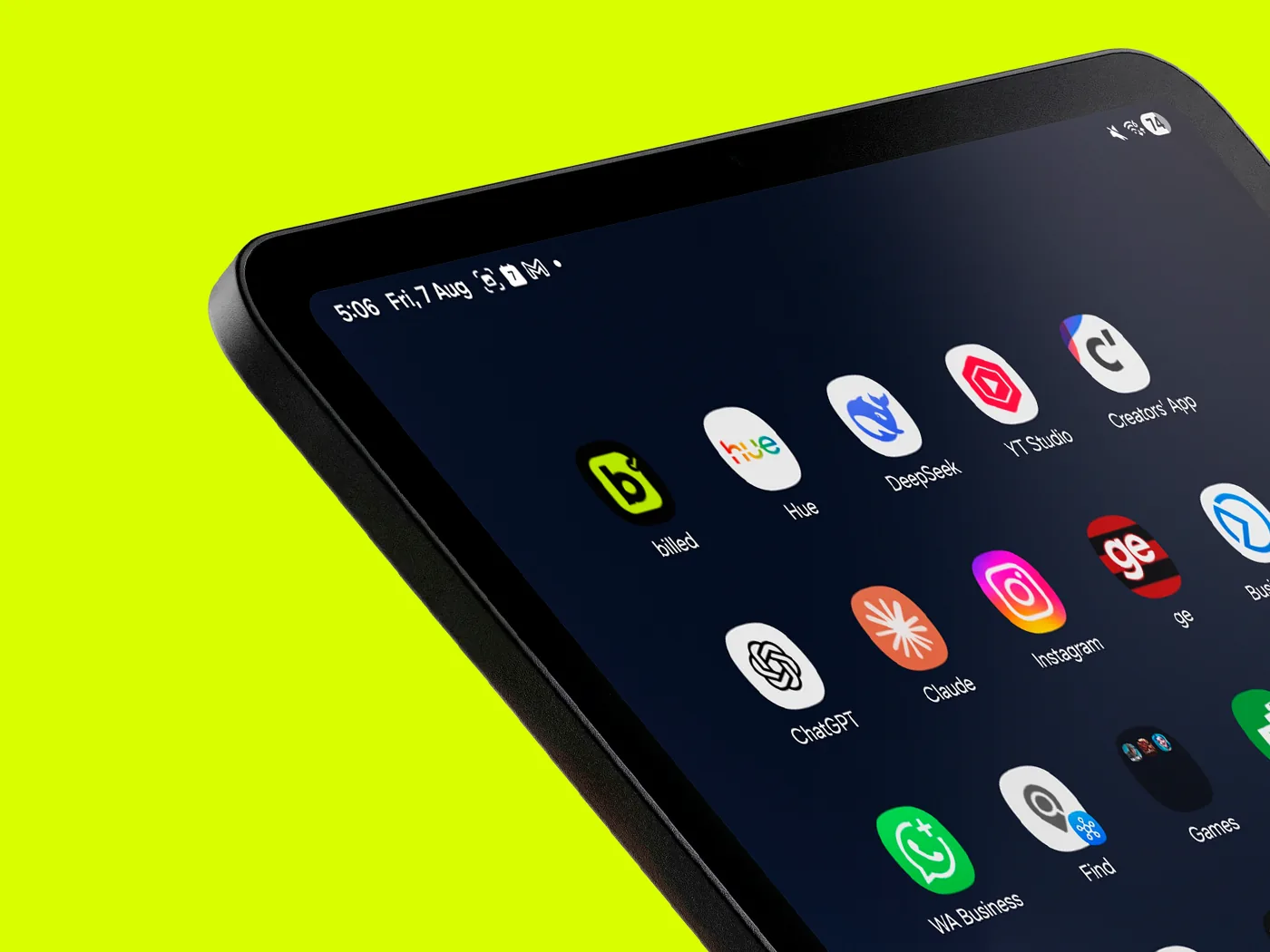
- Open app.billed.au in Chrome.
- billed will usually offer to install itself — if you see the prompt, tap Install and you're done.
- If no prompt appears, tap the ⋮ menu in the top right.
- Tap Install app, or Add to Home screen on older versions, then confirm.
Samsung Internet puts an install icon directly in the address bar instead of the menu. Brave and Edge both use the menu, same as Chrome.
Windows
Chrome or Edge · about 15 seconds
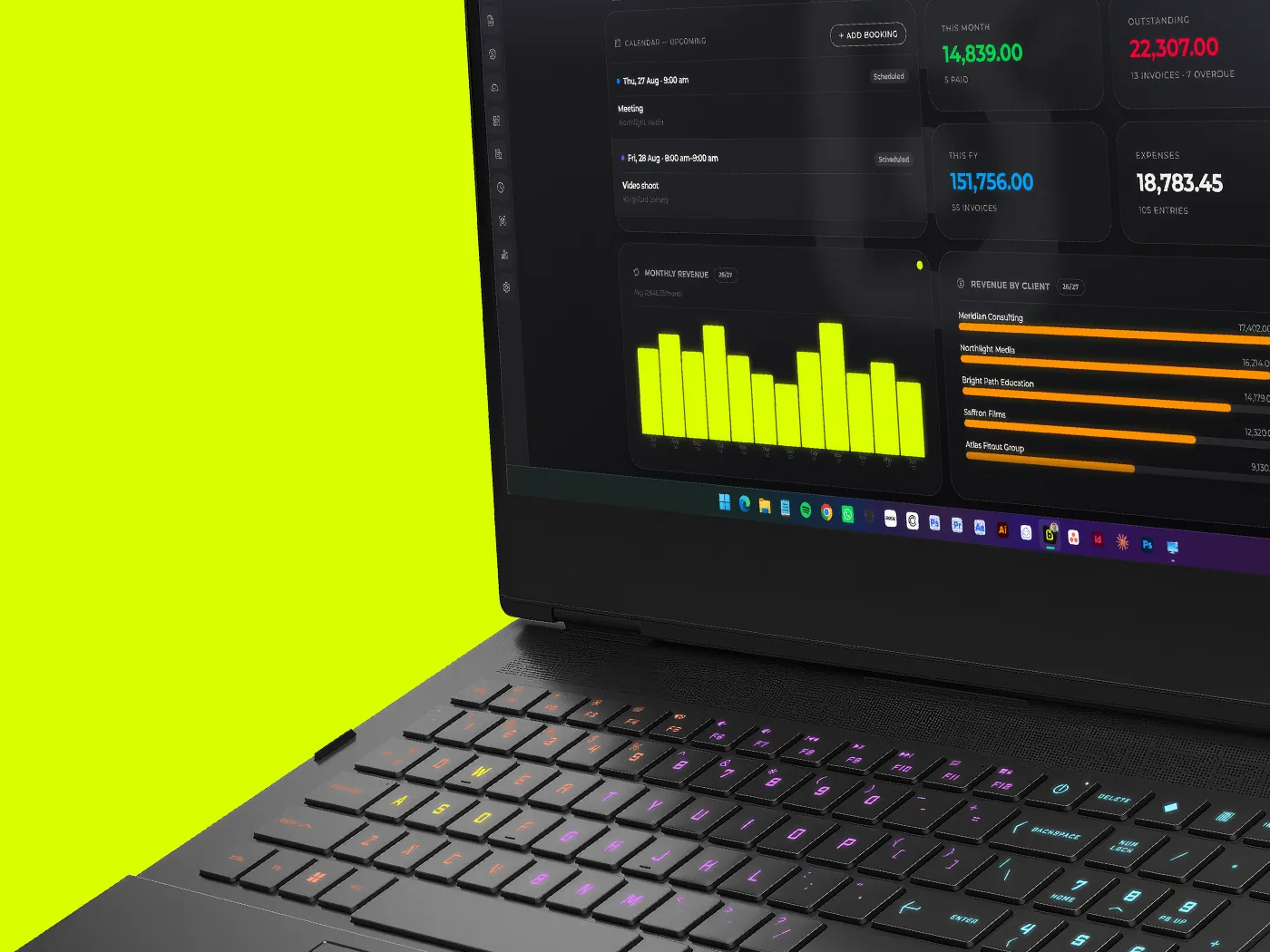
- Open app.billed.au in Chrome or Edge.
- Look for the install icon at the right-hand end of the address bar — a small monitor with a downward arrow.
- Click it, then click Install.
- billed opens in its own window and lands in your Start menu. Right-click its taskbar icon and choose Pin to taskbar to keep it handy.
No install icon? Open the ⋮ menu instead and look under Cast, save and share in Chrome, or Apps in Edge.
Mac
Safari, Chrome or Edge · about 15 seconds
- Open app.billed.au in Safari.
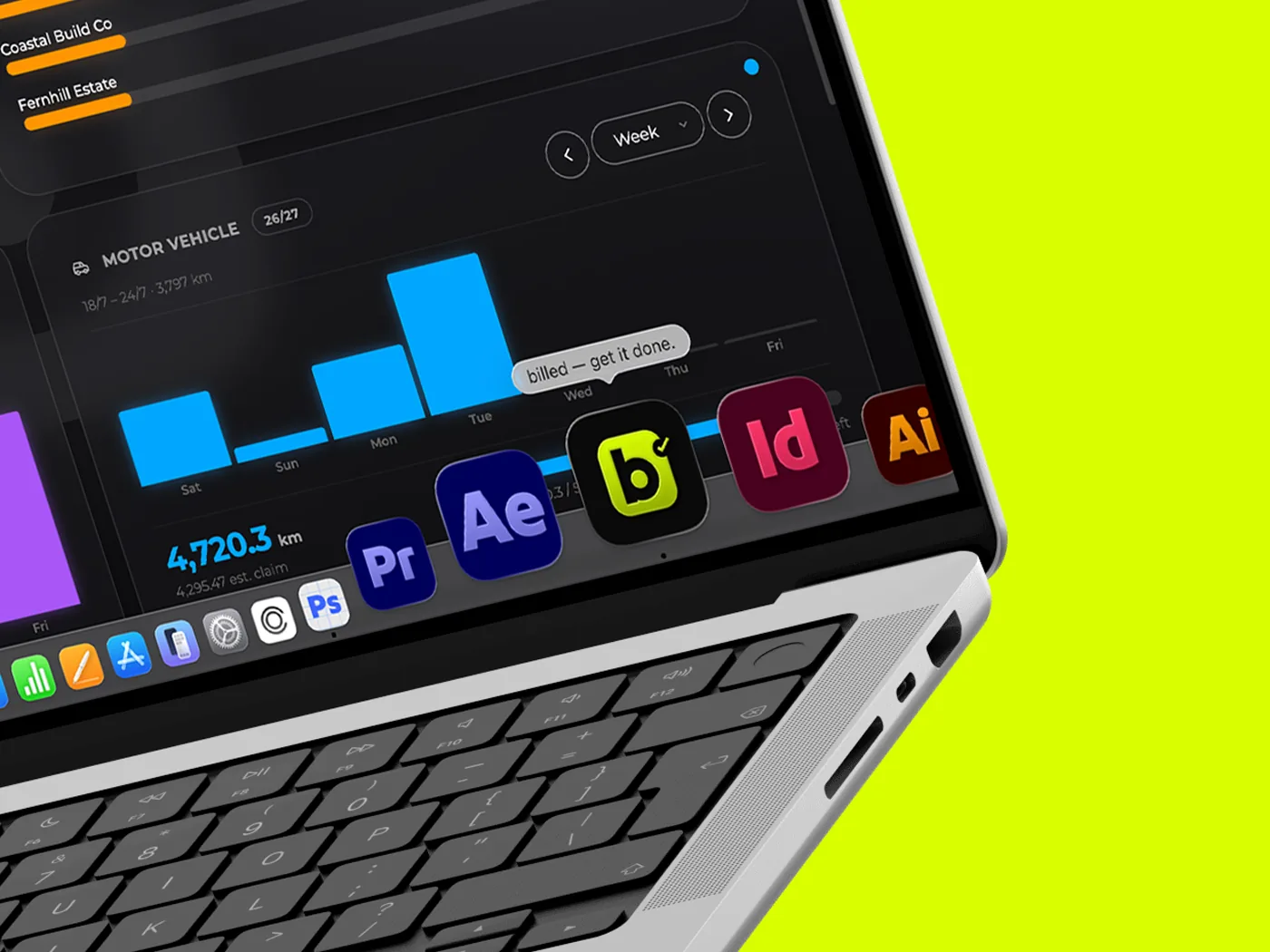
- From the menu bar choose File → Add to Dock. You can also use the Share button in the toolbar and pick Add to Dock there.
- Check the name, then click Add.
- billed lands in your Dock and your Applications folder, and turns up in Spotlight like any other app.
Worth knowing: a Mac web app keeps its own cookies and data, separate from Safari — so you'll be asked to sign in once inside the new window. Using Chrome or Edge instead? Click the install icon in the address bar, same as Windows. Add to Dock needs macOS Sonoma or later.
Why bother
It's the same billed, minus the browser.
One tap to open
An icon on your home screen or Dock, no address to type and no tab to hunt for among the others.
The whole screen
No address bar, no browser chrome. On a phone that's a useful amount of extra room for an invoice.
Your data, offline
A browser tab needs a connection just to load. Installed, billed keeps a copy on your device, so you can open it and read or export your data with no signal.
Questions
Before you install.
Is this a real app, or just a shortcut?
A real one. billed is a progressive web app, so once it's installed it runs in its own window with its own icon, keeps a local copy of your data, and behaves like anything else on your device. On Android there's a Play version too.
Is billed in the App Store or Google Play?
Yes, on Google Play — billed is there for Android. There's no iPhone app yet: on iPhone, iPad, Mac and Windows you install it straight from your browser in about twenty seconds, and it opens by its own icon like any other app. Either way your data stays on the device, so you can still see it when you're offline — changes save when you're back online.
Do I have to install it?
No. billed runs perfectly well in a normal browser tab at app.billed.au. Installing just makes it quicker to get to and gives you the full screen.
Can I install it on more than one device?
Yes, as many as you like — phone, tablet, laptop, desktop. Your data lives in the cloud, so it's the same billed everywhere and you sign in with the same account.
Does it work without internet?
Partly, and it's worth being clear about which part. You can open billed and view or export your data with no connection — you'll see an "Offline — working from local copy" badge. Creating and editing need to be online, because saves go straight to the cloud.
How do I remove it?
The same way as any app. Press and hold the icon on a phone and choose delete or uninstall; on a desktop, remove it from your apps list or Dock. Nothing happens to your account or your data — sign back in from any browser and it's all there.
Twenty seconds and it's on there.
Start the free trial in your browser and install it whenever you're ready. Fourteen days, no card, and your data comes out whenever you want it.